How to move your church website without losing your domain or email
By Allen Taylor 5 min read

The biggest fear churches have about switching website providers isn’t the design. It’s that something will break: the web address will stop working, church email will go dark, or years of sermons will vanish. Those fears are reasonable, because each of those things does happen when a move is rushed.
They’re also avoidable. A church website move comes down to a handful of steps, done in the right order. Here they are.
Understand the three separate pieces
Most confusion comes from thinking of “the website” as one thing. It’s really three, and they’re often with three different companies:
- The web address (yourchurch.org). This is registered with a company like GoDaddy, Namecheap, Squarespace, Cloudflare or Network Solutions. You rent it by the year.
- The website itself, meaning the pages, photos and sermons. This lives with whoever hosts your site today.
- Your email (pastor@yourchurch.org). This usually runs through Google Workspace, Microsoft 365 or the company where you bought the address.
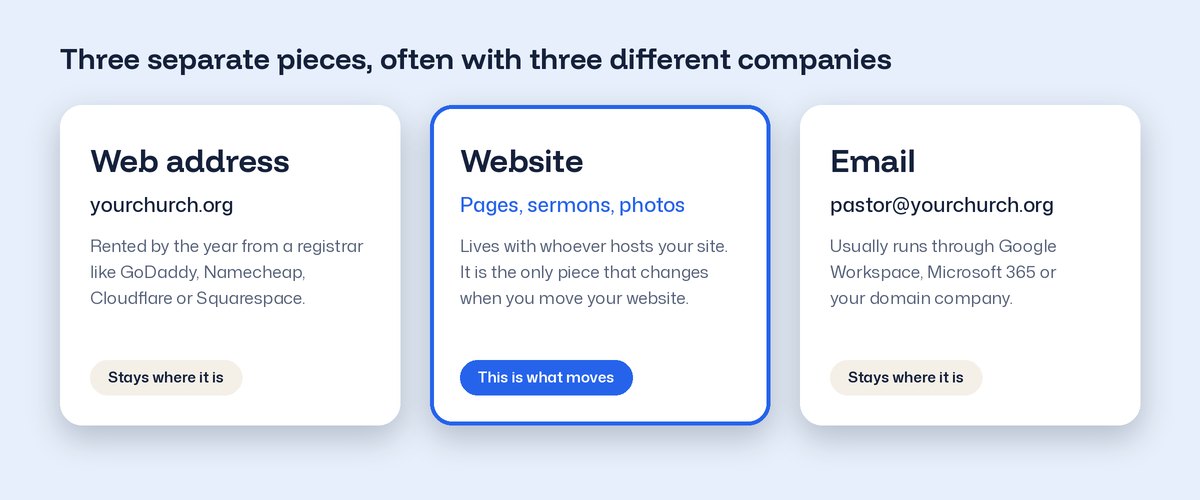
When you move your website, you’re only changing the second piece. The web address stays where it is. The email stays where it is. You’re just telling the address to point somewhere new.
Step one: find out where your web address is registered
This is the step that stalls most moves, because nobody remembers. To find out, go to lookup.icann.org, type your church’s address and look for the line labeled Registrar. That’s the company holding it.
Next, find the login. Search old email inboxes for the registrar’s name, and check with former staff or the volunteer who set up the site. If nobody has it, the registrar can help you recover the account, though they’ll want proof that you represent the church. Start this early, because recovery can take a few days.
One common surprise: if your church bought its address through Google Domains, it now lives at Squarespace. Google sold its domain business to Squarespace in 2023 and moved existing customers over. Sign in at Squarespace with the same Google account you used before.
Step two: write down what’s on your current site
Before you change anything, make a list of every page on your current site, or at least every page that matters. A quick way is to visit your site and click through every menu item. Note:
- Pages people actually use: service times, plan a visit, kids, beliefs, staff, giving, contact.
- Where sermons live. If they’re already on YouTube or a podcast service, they don’t need to be moved, only linked.
- Forms, like prayer requests or event signups, and who receives them.
- Your giving link. In most cases you’ll keep the same giving provider and simply link to it from the new site.
- Any links that are printed somewhere, like a QR code on a bulletin or a sign. Those addresses need to keep working.
This is also a good time to cut. If a page hasn’t been updated in years, consider leaving it behind.
Step three: build the new site before you touch anything
Your old site should stay up and unchanged while the new one is built. Any decent provider gives you a preview address where you can see the new site, click through it on your phone and make changes. Don’t point your web address anywhere until you’re happy with what you see.
Step four: leave your email settings alone
Email works through records called MX records, stored at your registrar or DNS provider. Your website works through different records, usually an A record and a CNAME record. A website move should only change the website records.
If anyone tells you to change your nameservers as part of the move, slow down. Changing nameservers moves all of your settings, including email, to a new place. It can be done safely, but every email record has to be copied over first. If you’re not sure, ask your new provider whether your email will be affected and get the answer in writing.
Step five: point your web address to the new site
When the new site is ready, sign in where your address is registered, open the DNS settings and change the records your new provider gives you. That’s typically two:
- An A record for the bare address (yourchurch.org), pointing to the new server’s IP address.
- A CNAME record for www, pointing to the new host’s name.
Delete any old A records for the same name, so there’s only one. If you leave the old one in place beside the new one, some visitors will see the old site and some will see the new one.
Changes can take anywhere from a few minutes to a day to reach everyone. During that window some people may still see the old site. That’s normal.
Step six: check everything once it’s live
- Visit the site with and without “www” on your phone and your computer.
- Make sure the address shows as secure in the browser. Most hosts turn this on automatically within an hour or so.
- Send a test email to a church address and reply from it.
- Submit a test prayer request or contact form and confirm it arrives.
- Click the giving link and make sure it goes to the right place.
- Try the old addresses you wrote down in step two, especially anything printed on a QR code.
Step seven: cancel the old service last
Wait a week or two after the move before you cancel your old hosting. Download a copy of anything you might want later. And when you cancel, be careful not to cancel the web address itself if it was bundled with the old hosting. If it was, transfer the address to a registrar you control first, or at least turn on auto-renew and confirm the renewal is under the church’s name and card.
How long a move takes
For a typical church site, building the new site is the longest part. The switch itself takes about fifteen minutes of clicking plus waiting for the change to spread. Finding the registrar login can take longer than either, so start there.
Moving to SundayFront
When churches move to SundayFront, the website screen in your dashboard shows the exact two records to set, with step-by-step instructions for GoDaddy, Namecheap, Cloudflare, Squarespace and others, and checks them for you. We only change where the website lives. Your church email stays with whoever runs it today.
If you’d rather not do the moving yourself, we’ll bring your current site into your new design for a one-time $499. You’ll get a preview to look over, and nothing changes on your old site until you approve. You can read how that works in our help center, or see pricing on the home page.