Getting started · 2 min read
Change service times, address or logo
Church info is the one place for details that show up all over your site: the top bar, the footer, the Visit page and the map.
Open Church infoSigns you in to your website’s dashboard and opens this screen.
- On the left, click Church info.
- Type your church name, address, service times, phone and email. Leave a box empty if you do not want it shown.
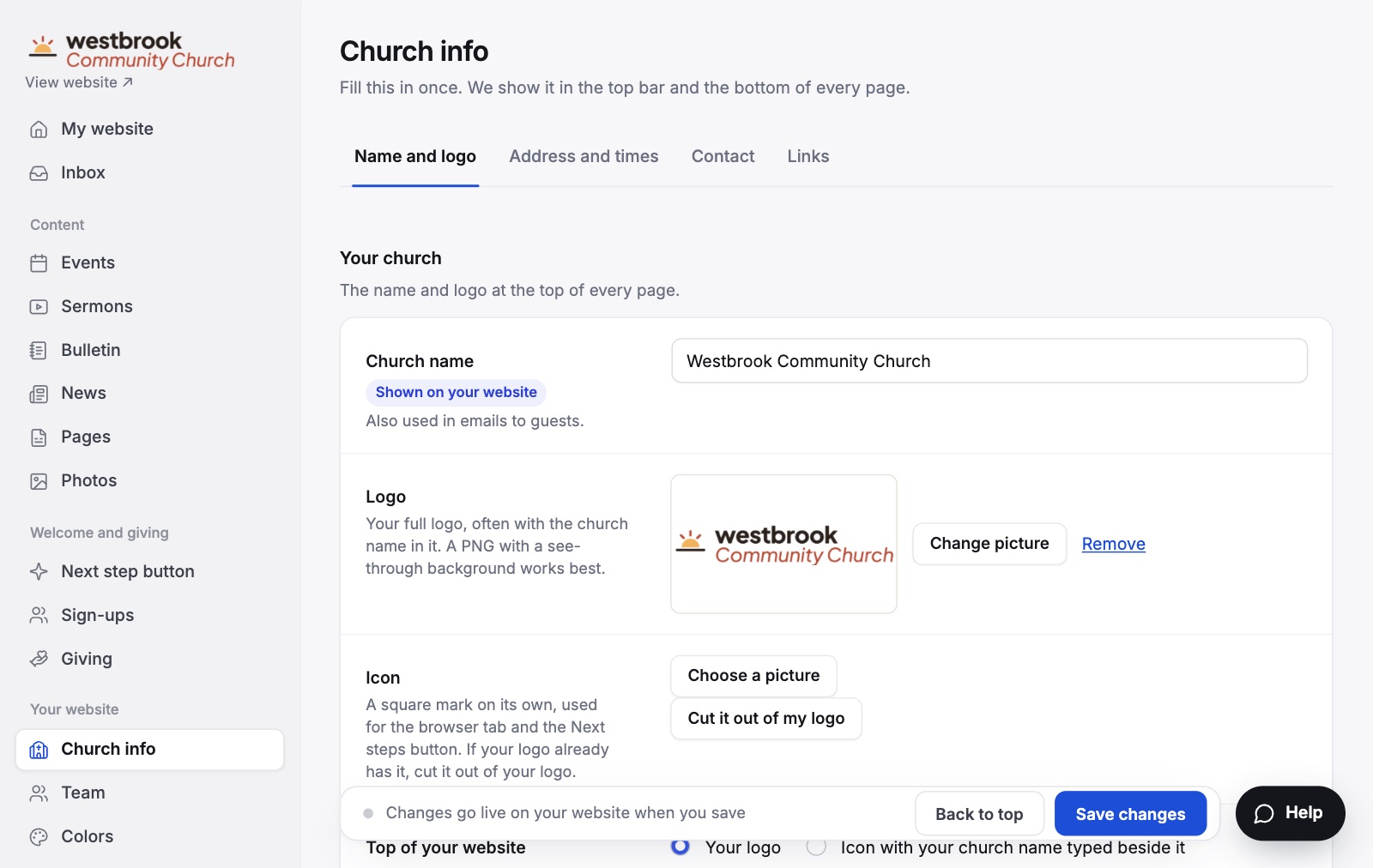
- Under Logo, click Choose a picture (or Change picture if one is already there) and pick your logo. A PNG with a see-through background looks best. A wide logo works better than a tall one.
- Add your Facebook, Instagram and YouTube links. Their icons appear in the footer; any you leave empty are hidden. Your Online giving link is where the Give button in the menu goes. Leave it empty to hide Give.
- Click Save. Open your website to check it.
Good to know
- The map on the Visit page is drawn from your address, so type the full street address with city and state.
- Changing the church name here also changes the name in browser tabs and search results.
Still stuck?
Ask in the chat and get an answer right away. If it needs a person, the team takes it from there.
Chat with usor email hello@sundayfront.com