Calendar and sign-ups · 2 min read
Add an event
Each event gets its own page and shows on the calendar and the home page.
Add an eventSigns you in to your website’s dashboard and opens this screen.
- On the left, click Events, then Add an event.
- Type the Event name, pick the Date, and set when it Starts and Ends. Tick All day if there is no set time.
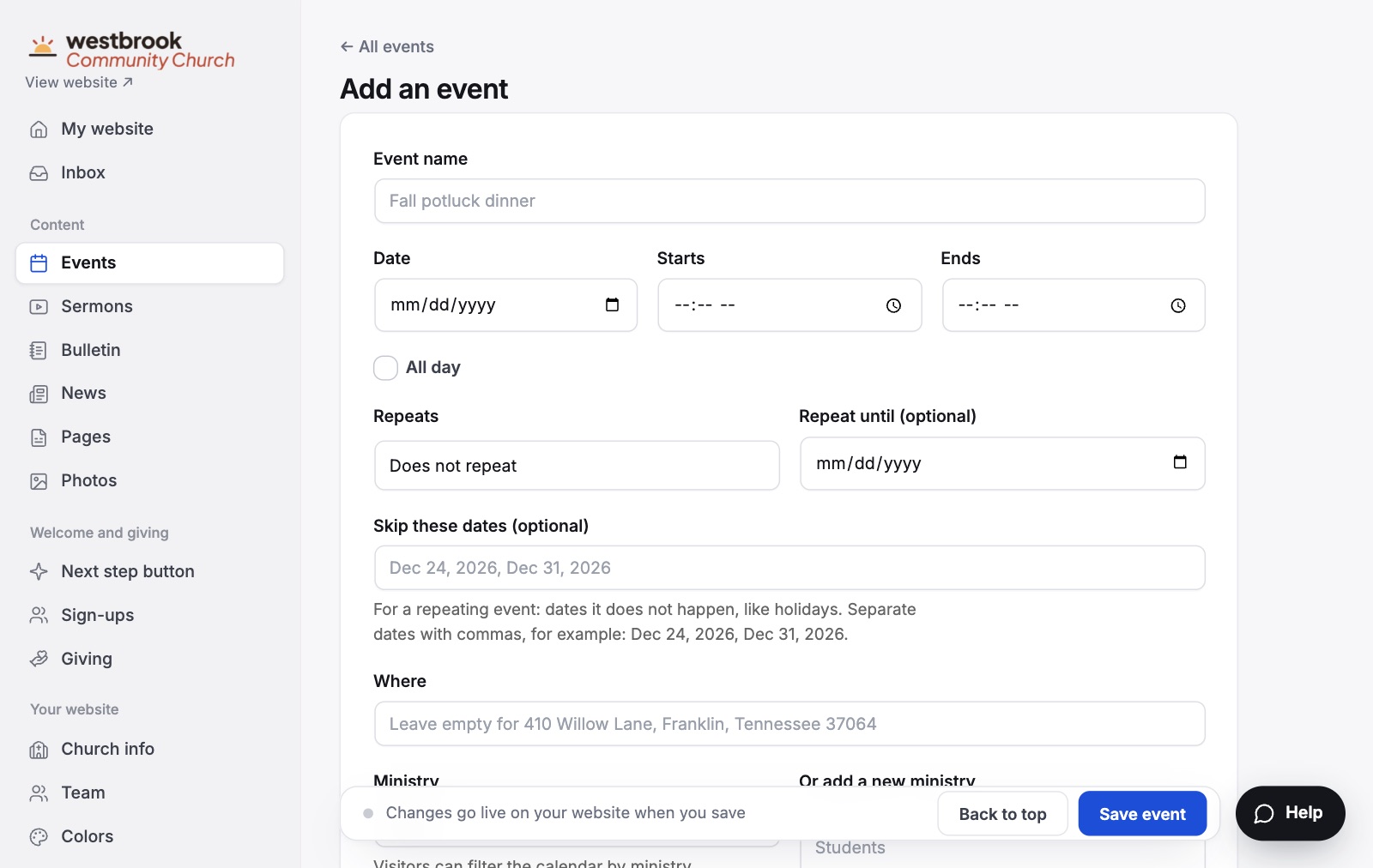
- Something that happens every week? Set Repeats to every week, every other week or every month. Add a Repeat until date if it stops, or leave it empty to keep going. Use Skip these dates for weeks it does not happen, like Christmas Eve.
- Fill in Where if it is not at the church. Pick a Ministry (Kids, Students and so on) so visitors can filter the calendar.
- Add a picture or event graphic if you have one, and a short description.
- Click Save event. It is on the calendar right away.
Good to know
- Cancelled one week of a repeating event? Edit the event and add that date to Skip these dates. The other weeks stay as they are.
- To move an event to a new date, edit it and change the Date.
- Events from Google Calendar cannot be edited here. Change them in Google and the website follows within the hour.
Still stuck?
Ask in the chat and get an answer right away. If it needs a person, the team takes it from there.
Chat with usor email hello@sundayfront.com