Your visitors · 4 min read
Set up the next step button
The next step button sits on every page. One tap opens a panel with what a guest or member is most likely to do next: plan a visit, send a prayer request, give, watch the latest sermon and more.
Open Next step buttonSigns you in to your website’s dashboard and opens this screen.
- On the left, click Next step button. Tick Show the next step button on my website.
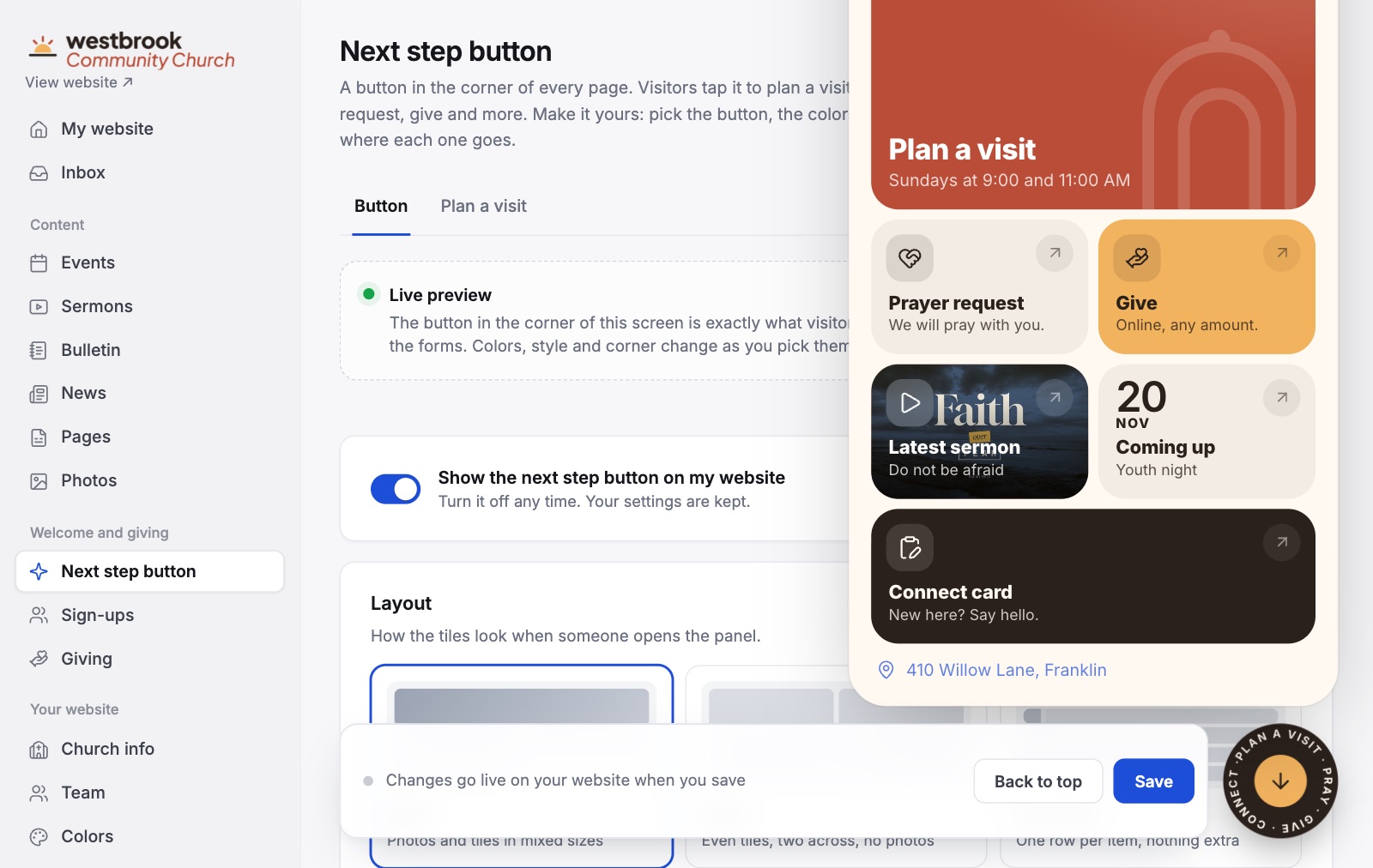
- Under The button, pick one of the four styles. The live preview on the right shows it on your site.
- Under Tiles, turn on the things you want in the panel and drag them into order. Click Edit on a tile to change its words.
- Pick where messages go: every form a visitor sends lands in your Inbox and is emailed to the address you enter.
- Click Save. Open your website and tap the button to try it.
Good to know
- Keep it to four or five tiles. Fewer choices get more taps.
- Plan a visit has its own screen for the first-visit details. See the Plan a visit guide.
Still stuck?
Ask in the chat and get an answer right away. If it needs a person, the team takes it from there.
Chat with usor email hello@sundayfront.com